Setting up Mail Clients: Difference between revisions
Jump to navigation
Jump to search
(Created page with "== Setting up Mail Clients == While you may use Redbrick's own mail client Webmail, most users may want to access their Redbrick mail through their own mail clients. == How To == Users will use the following IMAP settings for setting up their redbrick mail in a third party client. <pre> Incoming Mail Server : mail.redbrick.dcu.ie Connection Security : SSL/TLS Port Number : 993 Email : username@redbrick.dcu.ie Password...") |
No edit summary |
||
| (2 intermediate revisions by the same user not shown) | |||
| Line 19: | Line 19: | ||
[[Image:Thunderbird how to 1.png]] | [[Image:Thunderbird how to 1.png]] | ||
[[Image:Thunderbird how to 2.png]] | [[Image:Thunderbird how to 2.png]] | ||
<br clear="all"/> | |||
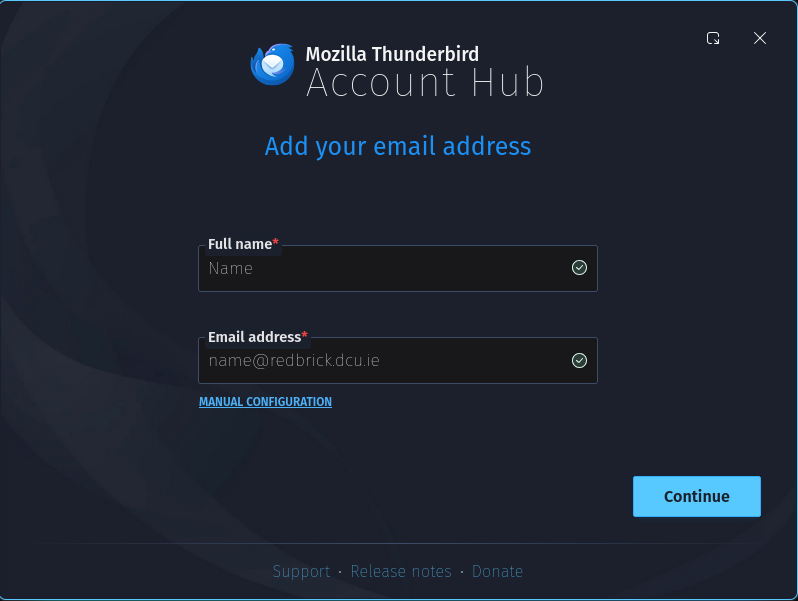
*You can use any name, use email as username@redbrick.dcu.ie | *You can use any name, use email as username@redbrick.dcu.ie | ||
[[Image:Thunderbird how to 4.png]] | [[Image:Thunderbird how to 4.png|frame|left]] | ||
<br clear="all"/> | |||
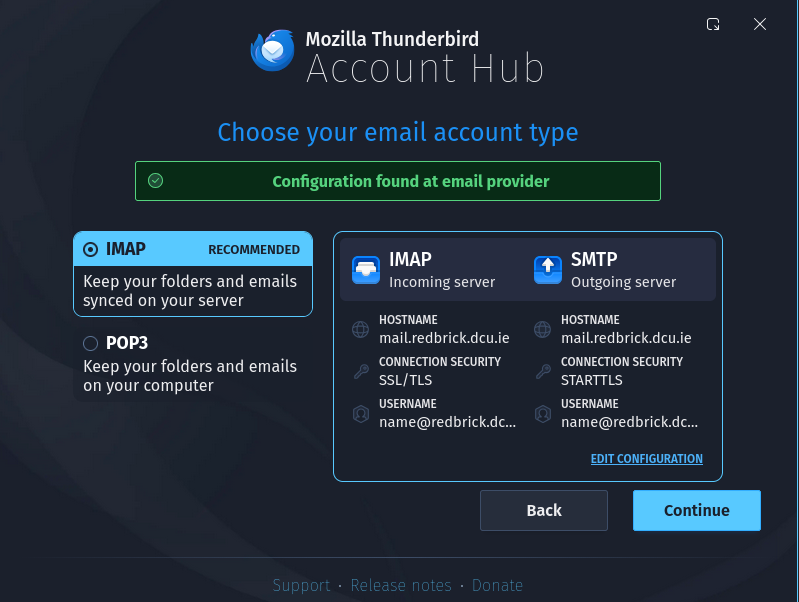
*Select IMAP and use default settings | *Select IMAP and use default settings | ||
[[Image:Thunderbird how to 3.png]] | [[Image:Thunderbird how to 3.png|frame|left]] | ||
<br clear="all"/> | |||
=== Gmail === | === Gmail (Mobile) === | ||
*Go to Add Accounts | *Go to Add Accounts and select Other | ||
[[Image: | [[Image:Gmail_setup_1.png|thumb|left]] | ||
<br clear="all"/> | |||
*Enter your email address and select Manual Setup in the bottom right | *Enter your email address and select Manual Setup in the bottom right | ||
[[Image:Gmail_set_up_3.png|thumb|left]] | |||
<br clear="all"/> | |||
*Select IMAP | *Select IMAP | ||
*Set Ingoing and outgoing mail server to mail.redbrick.dcu.ie(it will be different by default) | *Set Ingoing and outgoing mail server to mail.redbrick.dcu.ie(it will be different by default) | ||
[[Image:Gmail set up 2.png|thumb|left]] | |||
__NOTOC__ | |||
[[Category:Helpdesk]] | |||
Latest revision as of 22:15, 21 April 2026
Setting up Mail Clients
While you may use Redbrick's own mail client Webmail, most users may want to access their Redbrick mail through their own mail clients.
How To
Users will use the following IMAP settings for setting up their redbrick mail in a third party client.
Incoming Mail Server : mail.redbrick.dcu.ie
Connection Security  : SSL/TLS
Port Number          : 993
Email                : username@redbrick.dcu.ie
Password             : [Your Password]
Thunderbird (Recommended)
- Download Thunderbird, Mozilla's mail client.
- Add new mail account


- You can use any name, use email as username@redbrick.dcu.ie

- Select IMAP and use default settings

Gmail (Mobile)
- Go to Add Accounts and select Other

- Enter your email address and select Manual Setup in the bottom right

- Select IMAP
- Set Ingoing and outgoing mail server to mail.redbrick.dcu.ie(it will be different by default)
