Java Classpath Windows: Difference between revisions
(Added images to page.) |
No edit summary |
||
| Line 1: | Line 1: | ||
{{outdated}} | |||
The Java Classpath is a list of the directories and files on the disk that the java development kit will scan when compiling a program.<br> | The Java Classpath is a list of the directories and files on the disk that the java development kit will scan when compiling a program.<br> | ||
These directories and files contain classes that can then be used in your program.<br> | These directories and files contain classes that can then be used in your program.<br> | ||
| Line 28: | Line 30: | ||
Image:Java_Classpath_Img_7.png | Step 7 | Image:Java_Classpath_Img_7.png | Step 7 | ||
</gallery> | </gallery> | ||
[[Category:HowTo]] | |||
Latest revision as of 00:38, 22 April 2026
| IMPORTANT: The content of this page is outdated. If you have checked or updated this page and found the content to be suitable, please remove this notice. |
The Java Classpath is a list of the directories and files on the disk that the java development kit will scan when compiling a program.
These directories and files contain classes that can then be used in your program.
This can be added or modified on Windows by following the following steps.
1) Open My Computer (Computer)
2) Right click and select properties.
3) Select Advanced Systems Settings from the left navigation bar.
4) Open the Advanced Tab of the Systems Properties Window.
5) Select Environment Variables.
6) If class path already exists select it and click edit otherwise click new.
7) Enter CLASSPATH as the variable name.
As the variable value enter the following: "C:\Program Files\Redbrick;C:\Program Files\Redbrick\*;."
Now when you run javac it will check the C:\Program Files\Redbrick directory for any class or jar files and include them in your project.
You will need to close and reopen any terminals you are currently using as it does not affect the current session.
Images

Step 1
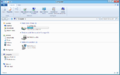
Step 2
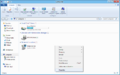
Step 2.1
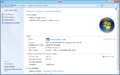
Step 3
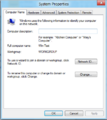
Step 3.1
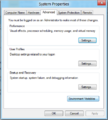
Step 4
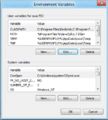
Step 6
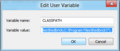
Step 7


